AI Agent Approval Workflows: How to Let AI Send on Your Team's Behalf (Safely)
The safest way to let an AI agent email or message for your team is to require approval by recipient, not by task. Here is a 5-step setup.
The first question a manager asks before letting an AI agent work for the team is rarely "how smart is it?" It is "what happens if it emails the wrong person?" That worry is reasonable. An AI agent that can send email, reply on WhatsApp or message a client is doing real work in your name, and one wrong message to a customer costs more than the hours the agent saved that week.
The answer is not to keep agents away from outbound work. It is to put a human approval step in the right place: tight where a mistake is expensive, loose where it is not. This guide shows how to design an AI agent approval workflow for a team, what to require approval for, and how to loosen it over time without losing control.
What an AI agent approval workflow is
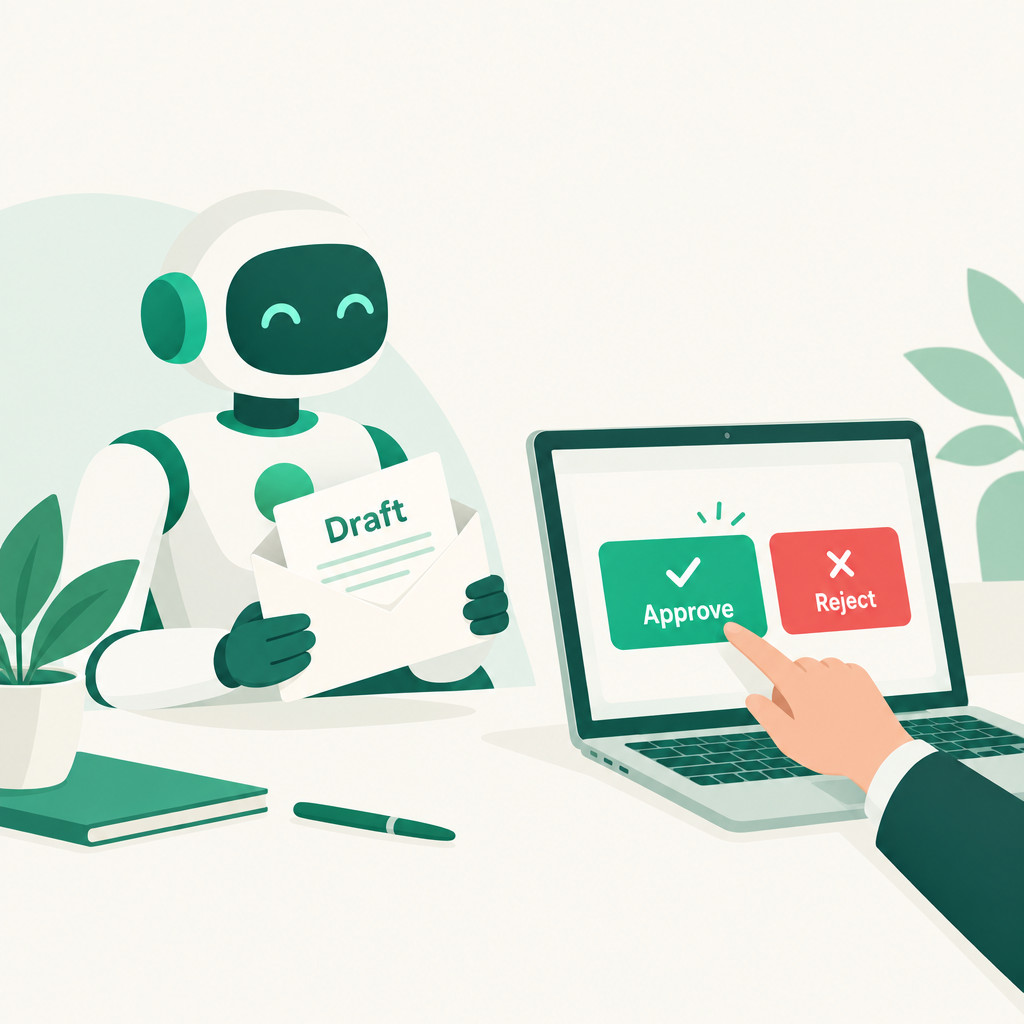
An approval workflow (often called "human in the loop") is a rule that stops an agent before a specific action and asks a person to confirm it. The agent does the work, drafts the message and decides it should go out. A human then approves it, rejects it or edits it before it reaches anyone.
Good approval workflows have three properties:
- They are scoped. Approval applies to certain actions or recipients, not to everything. If every step needs a click, the agent saves nobody any time.
- They are fast to clear. The person approving sees the full draft and the reason for it, and can approve in one step from wherever they already work.
- They expire. A draft that nobody looks at should not sit in a queue forever and go out three weeks late with stale information.
Where approval matters most: who the agent is talking to
Most teams start by asking "which tasks are risky?" A more useful question is "who is the agent talking to?" The same message is low risk when it goes to a colleague and high risk when it goes to a customer, a supplier or a journalist.
That gives you three natural levels:
| Level | Agent can send without approval to | Good for |
|---|---|---|
| Open | Anyone | Mature agents doing routine, well-tested outreach (meeting reminders, confirmations) |
| Internal only | People inside your workspace | Agents that report to the team, chase internal to-dos, share summaries |
| Managers only | Only the people who manage the agent | New agents, agents handling sensitive topics, anything client-facing in its first weeks |
Anything outside the allowed level is held as a draft until a manager approves it. This keeps internal work fast (nobody needs to approve a summary sent to their own team) while making sure nothing reaches the outside world unchecked.
How it works in Spinnable
Spinnable added this as a built-in setting in its November 11 release. In each AI worker's Security and privacy settings, managers choose who the worker can email or message on WhatsApp without checking first:
- Anyone (the default)
- Workspace: people in your Spinnable workspace
- Only managers: the worker's managers
Email and WhatsApp are set separately, so you can, for example, let a worker email the team freely while every WhatsApp message to a customer needs a yes. When the worker wants to send to someone outside the allowed group, it holds the message as a draft and asks a manager in chat. The manager approves or rejects it there. Drafts nobody approves expire after 48 hours, so nothing goes out late.
Because Spinnable charges for workers rather than seats, adding the whole team as managers or approvers costs nothing extra. That matters: approval only works if someone is around to approve, and the person who knows the client best is often not the person who set up the worker. Try it with your team on Spinnable.
A 5-step setup for your team
- List every outbound channel the agent can use. Email, WhatsApp, Slack, a CRM that sends sequences. Approval only protects the channels it covers.
- Sort recipients into internal and external. Your workspace is the line. Colleagues are internal; customers, suppliers, candidates and partners are external.
- Start new agents at "Only managers" for external channels. For the first two weeks, every external message is a draft you read. This is where you learn how the agent writes and where it misjudges tone.
- Pick approvers who can respond within hours. Add at least two managers so drafts do not stall when one person is away. A 48-hour expiry is a safety net, not a target.
- Review rejections weekly. Every rejected draft is a lesson. Fix the instruction, the template or the data behind it, then decide whether the agent is ready for a looser level.
When to loosen approval
Approval is a stage, not a permanent state. If managers approve every external draft unchanged for two or three weeks, the step is costing time and adding nothing. Move that agent up a level for that channel and keep watching.
A simple rule of thumb: loosen one channel at a time, and only after a run of approvals with no edits. Tighten again immediately after any message that should not have gone out. This is the same idea as the progressive trust playbook: give an agent more room as it earns it, the way you would with a new hire.
Common mistakes
- Requiring approval for everything. If internal summaries and reminders need a click, people stop reading drafts and approve on autopilot. Save approval for messages where a mistake hurts.
- One approver. A single person on holiday turns your agent into a queue of expired drafts.
- Approving without context. The approver should see who the message is for and why the agent is sending it. If they cannot tell, the agent's instructions need work.
- Never loosening. An agent stuck at the strictest level forever is an expensive drafting tool. Set a review date when you set the rule.
- Forgetting cost and approval are linked. Controls work best together. Pair approval rules with credit limits per worker and per member so you control both what an agent says and what it spends.
FAQ
Does approval slow the agent down?
Only for the messages it covers. The agent still does the research, drafting and scheduling on its own; it pauses at the final send. For internal work set to "Workspace", there is no delay at all.
What happens if nobody approves a draft?
In Spinnable it expires after 48 hours and is not sent. That stops old drafts with out-of-date information from going out late.
Can I use different rules for email and WhatsApp?
Yes. They are separate settings, which is useful because WhatsApp messages to customers usually need more care than internal email.
Who can approve?
The worker's managers. Since you pay for workers, not seats, you can add more teammates as managers at no extra cost so drafts get cleared quickly.
Key takeaways
- Decide approval by recipient, not by task: internal is low risk, external needs a check.
- Start new agents strict on external channels, then loosen one channel at a time.
- Use at least two approvers and let unapproved drafts expire.
- Combine approval rules with spending limits for full control.
If you are rolling AI out to a whole team, see also AI agents for teams and how to onboard an AI employee. Ready to set up a worker that checks with you before it sends? Start free on Spinnable and invite your whole team at no per-seat cost.